
IMPORTANT! You need to be an OWNER of the Google Play developer account to be able to execute this guide.
9 steps to perform the integration
-
Access the Google Cloud Console.
-
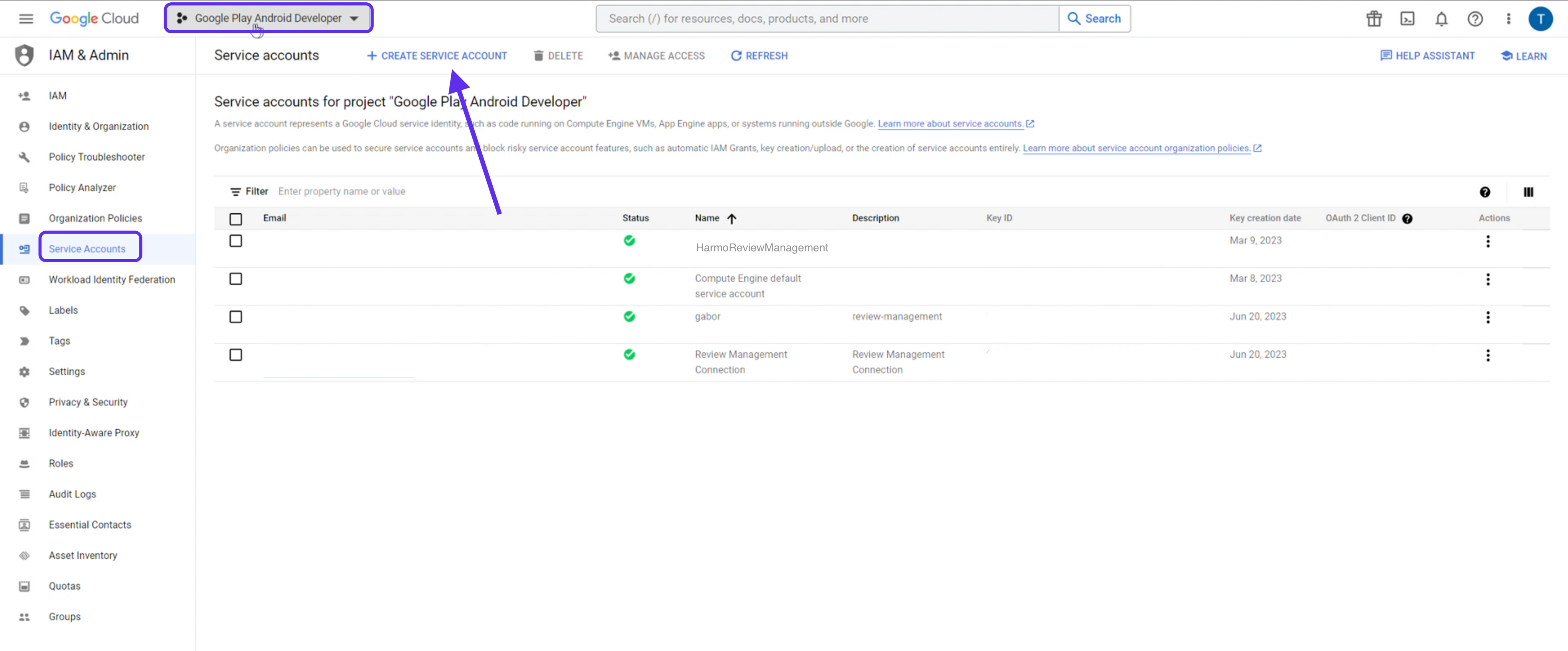
Access the menu IAM & Admin > Service Accounts.
-
Make sure you are in the Google Play Android Developer project.
-
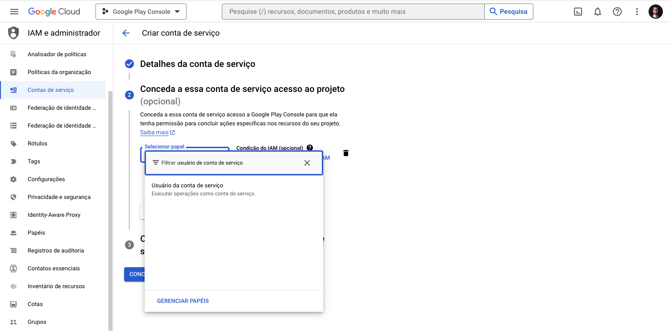
Click "+ Create service account" and fill in the service account details, grant "Service Account User" permission for this project. After clicking the "Done" button.
-
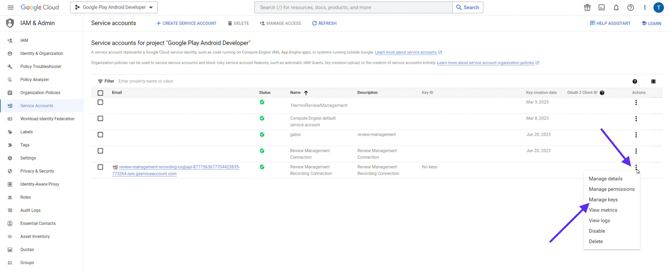
In the list of service accounts, find the new account you created and click the three dots for more actions and select "Manage keys".
-
On the Keys page, click "Add key" > "Create new key" and select the JSON key type. Download this file to your computer.
-
Now access the Google Play Console.
-
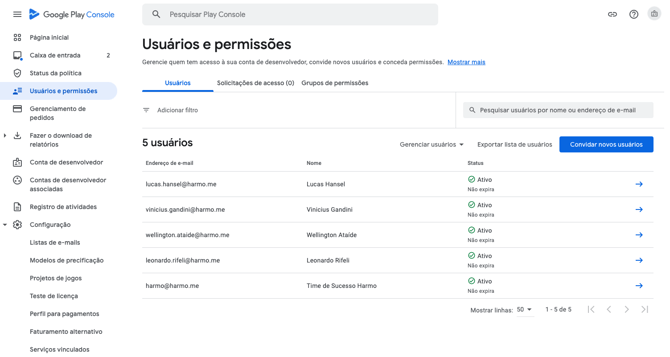
Access the Users and Permissions menu and click "Invite New Users". Add the email of the service created in the Google Cloud Console. On this same page in the "App Permissions" section, add the app and select the following permissions:
-
-
•View app information and download bulk reports (read-only)
-
•Reply to reviews
-
Grant this user app permissions to access the apps you want to connect.
-
9. Finally, invite the user.
Step-by-step guide
1. Access the Google Cloud Console
-
Go to the menu IAM & Admin > Service Accounts.
-
Make sure you are in the correct project: Google Play Android Developer.
2. Create a new Service Account
-
Click on “+ Create service account”.
-
Fill in the requested details.
-
Grant "Service Account User" permission for this project.
-
Click on “Done”.
(You will be redirected to the list of service accounts — the field in step 3 can be left blank.)
3. Generate the Service Account key
-
Find the newly created account in the list.
-
Click the three dots (⋮) next to it and select “Manage keys”.
-
On the Keys page, click “Add key” > “Create new key”.
-
Choose the JSON format and download the file.

4. Go to the Google Play Console
-
Access the Google Play Console.
-
In the left menu, go to Users and permissions > Invite new user.
5. Invite the service account
-
In the email field, enter the email of the service account created in the Google Cloud.
-
Under App permissions, select the desired app(s).
-
Check the permissions below:
-
View app information and download bulk reports (read-only)
-
Reply to reviews
-
-
Confirm by clicking “Invite user”.
6. Finalization
-
Send us:
-
The generated .json file;
-
Your Developer ID (found in the footer of the Google Play Console homepage).
-
Once we receive this data, we will complete the integration for you!
Still need Help?